To do so you need to understand the information in the bar at the bottom of your screen.

D3Edit numbers things starting with 0. Four faces will be numbered 0 through 3.
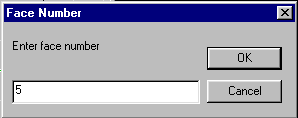
The next 4 tools are going to ask you for to specify the face,
edge, or vert you want as your target.
To do so you need to understand the information in the bar at the bottom
of your screen.
D3Edit numbers things starting with 0. Four faces will be numbered
0 through 3.
| R: 45/56 | Room #45 of 56 is current | Grid: 1 | Grid increment is 1 |
| F: 6/42 | Face #6 of 42 is current | 2058, 250,2430 | Grid point you are pointing to |
| P: 0/3 | Portal #0 of 3 is current | 0,0,0 | Current grid point (red X) |
| E: 0/4 | Edge #0 of 4 (of the current face) is current | Face mode | Which mode you are in
(face, vert, object) |
| V:(idx) 0/4(11/48) | Vert # 0 of the current face
Vert # 11 of the current room is current |
Marked V:0 F:0 | How many verts and faces are marked. |
 |
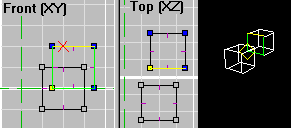
Snap Current Vert To Specified Face
This will Snap Current Vert To Specified Face moving marked verts with
it.
|
 |
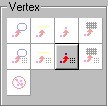
Snap Current Vert To Line of a Specified
Edge
For this tool you will have to know the number of the target edge and the number of the face that edge belongs to. It will move it to the imaginary line (moving any marked verts with it) of that edge not necessarily the edge itself. Remeber that none of the verts get automaticaly attached should it hit the edge. You will have to do that.
|
 |
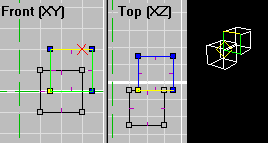
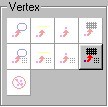
Snap Current Vert to Specified Vert
Probably the one of these 4 that you will use the most.
|
 |
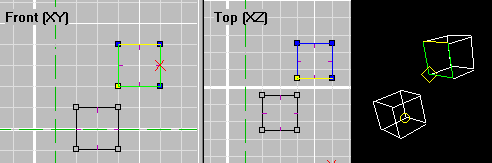
Snap Current Vert To Grid Point
Moves the current vert to the nearest grid point moving all marked verts with it. It's the nearest active grid point of the
active
2D frame (front, top, or side)
|
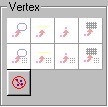 |
Remove Extra Verts
Like the name says... it removes extra verts.
|