QUICK TOOL REVIEW  Page 3 [Previous][Next] [Main]
 
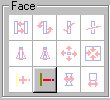
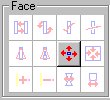
Expand  Face

Expands the current face.  Make a face current then pick the tool.  Every click enlarges the face while keeping it's proportions.  Great but has a draw back. Watch the example.

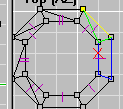
We start with the simple column below. Make the top face current.
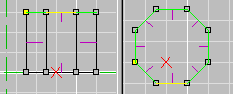
I click the tool twice and get the results below. All the sides attached to face split.  You think it's because they are non-planar. 
In some cases they are but in this one they're not.
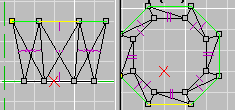
 
You should go back and use Combine Faces to and rejoin them to keep your face count down

Contract Face

Contracts (shrinks) the current face  while keeping it's proportions. It has the same tendency to split faces whether they need it or not so be aware.


Add  Vert.

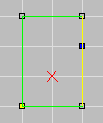
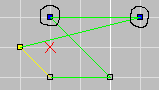
This will add a marked vert to the current edge.  It's great for fixing T-Joints similar to the example below.
 
Step 1

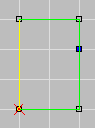
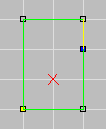
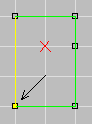
Mark the vert that needs to be added to the face.

Step 2 

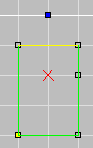
Make the face current then Hit 'E' to get the edge current.

Step 3

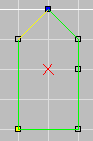
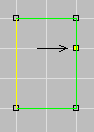
Pick the tool.  See that there are now 5 edges.


The vert doesn't have to be on an edge of the face.  You can use it to add more shape to a face.
Be carefull though.  The tool does not check if the resulting face will be non-planar or concave.


Remove Vert

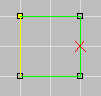
This will remove the current vert from the current face. 
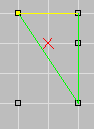
Make the face current then hit 'V' to cycle to the vert you want to remove. Pick the to and get the results to the right.  Notice the vert is still there, it's just no longer part of the face. Remove Vert can also be used to fix T-joint by removing from it's parent face if it isn't needed.


Twist Face

Fixes a twisted face caused by making a face with verts that  were not inserting in countinous order around the face. This most commonly happens when adding a face to join existing faces. For five or more you must use Swap Face Verts
Make the face current
Pick the tool and get this result.


!Note!
1) Verify which way the normal is facing when you're done.
2) Reset texture to Default UV's. It's warped until you do.
3) It doesn't check for planar, you'll have to.
4) It doesn't check for concave, you'll have to.


Swap Face Verts

For fixing twisted faces with 5 or more verts.  It swaps the 2 marked verts with each other.  I prefer to make faces with no more than 4 verts at a time and join them to avoid having to do this.   With 5 verts Swap Face Verts is simple.  With 6 or more  it's possible to have more than one twist.  You're better off avoiding this situation when possible.
First mark the verts to swap. Then make the face current.
Pick the tool and get this result.

!Note!
1) Verify which way the normal is facing when you're done.
2) Reset texture to Default UV's. It's warped until you do.
3) It doesn't check for planar, you'll have to.
4) It doesn't check for concave, you'll have to.

Continue Quick Tool Review

Back to Papacat's main page.