TURRETS
Turrets are the easiest "Animated Robot" to build and animate.  This is because the you don't have to create the animation.  All you need to do is assign the TURRET property and adjust it's settings.   A few rules have to be followed in setting up the sub-models.  This tutorial will show you how to set up you oof to use the TURRET property successfully.  The file Turrets.zip contains the orf, oof, .gam and the MN3 created for this tutorial.
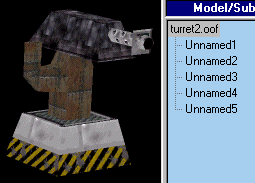
Here's a simple turret being built in D3Edit.

I have 5 separate  pieces.  The Head and Post will be the 2 moving pieces.  I'm keeping the barrel separate from the head in case I decide to add animation for it to recoil (not part of this tutorial).  There's an independent face for me to convert to a gunpoint (Remember - Plan Ahead). 

In D3Edit I make sure the model is assembled the way I want it .  Open it in OOFEditor and you see my 5 sub-models listed in the Tree

Name the Subs.
Don't bother naming the one that will be a gunpoint.
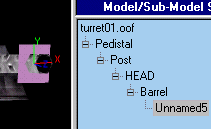
Set up the sub-model hierarchy.
Right-Click on the face and convert it to a gunpoint.
A Gunpoint is assigned "GNPT#" in the order they are created.
This tree shows one of the most important points in building a turret.  GNPT1 is not only going to fire the weapon, it is also the "Aiming Gunpoint" (spec'd in the .gam).  The "Aiming Gunpoint" MUST be a subordinate to the sub-models that move.  When GNPT1 tries to aim, it tells the sub-models ABOVE it to move. GPNT1 could have been child to Head or Barrel as long as it was subordinate to Head.

A Sub-model rotates upon it's individual axis which originates at it's Pivot Point.  Make sure each sub's pivot point  is where you want it.

To move the  pivot point highlight the sub-model, click on "Affect Pivot Only" then adjust it's XYZ Location.


 In the beginning I said we wouldn't  need to set up an animation.  By this I meant actual motion.  We are NOT going to tell the subs to move, we're only going to set up keys for D3 and the turret property to refer to.
Head is go to rotate up and down (around the X axis).  Post will turn left and right (around the Y axis)  To use the Turret property they must have a rotation key in the Frame 0 and 1.  D3 looks at the key in Frame 1 to check what axis it rotates upon.

Go to the Animation Tab with the sub highlighted and the Frame Marker at 0.  Set the Rotation button.  You'll see an oval appear in the bar.  Do this for frames 0 and 1 of the Head and Post sub-model.

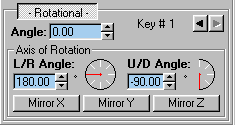
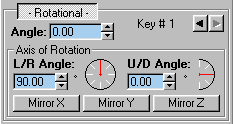
Highlight Post and put the Frame Marker at 1/1.  Set the Rotational key's Axis of Rotation as shown below.  This is where the turret property looks for the axis.  The settings below make the axis vertical (parallel to the Y). Set the Head's frame 1 rotation key as show below.  These settings will make it's axis parallel to the X.
 Notice that we didn't touch Angle.  To do so would have been to define actual movement.

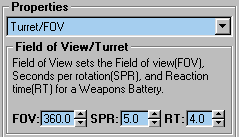
With Post highlighted, go to the Properties Tab.  Set Post's property to Turret/FOV.  Set the FOV to 360. The FOV here is actually the range of motion.  By setting it to 360 it will be able to go in a complete circle.  It will also be able to continue in a circle instead of having to back up.
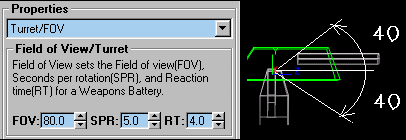
Now set the properties for Head to what is shown to the right.  The 80 degree FOV will limit it's range to 80 degrees.  This will be 40 degrees in each direction.

Now to Set up the Battery
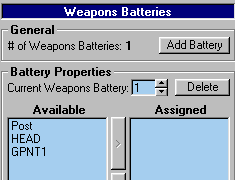
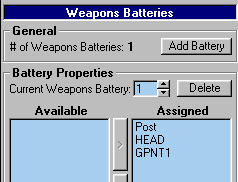
Go to the Batteries Tab.  Click Add Battery to create a battery.  On the left are all the available gunpoints and turrets. With Current Weapons Battery set on 1, select each turret and the gunpoint and add them to 'Assigned'.
The turrets and the gunpoint must all be in the same battery.
Click SAVE. You're done with the oof.

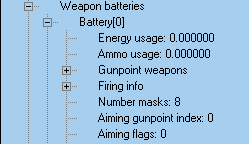
Now set up a .gam file.  The are a lot of settings you can adjust to control the turrets behavior.  There are 2 main setting I want to point out for your turret to work properly.  The first is under AI Settings.  Make sure Type is set to Stationary Turret.  The other is in Weapons Batteries.  Remember that the .gam starts counting batteries and gunpoints at 0, not one.  Go into Battery 0 
 The other is in Weapons Batteries.  Remember that the .gam starts counting batteries and gunpoints at 0, not one.  Go into Battery 0.  Set the 'Aiming gunpoint index'  to 0 (zero).  In OOFEditor this was GNPT1.  This is the gunpoint that will be used to aim.  It must be part of the gun battery and, as I mentioned earlier, it MUST be subordinate to the sub-models with the turret properties.  For more info on setting up a robot's weapon batteries see my tutorial Custom Robots Part 1.  (I really should write Part 2)
The easiest way to set up the .gam is to start with a .gam from one of D3's original turrets.  If you do so there are some things you have to watch out for.  Mainly,  make sure the .gam doesn't reference any gunpoint numbers that don't exist in YOUR oof.  If D3 tries to use a gunpoint that does exist, the game crashes.  Also go through 'Firing info' of your weapons battery and check to see that it isn't using any animation such as the loading action used by the LANCE turret.
That's it.  Put the turret into your .d3l, then create an MN3.   Remember to put the .oof and .gam in using Add files.

Thanks to Garner1 for getting me started on turrets.


[ BACK ]