
Install
| Overload Resources Home | Back to Overload Tutorials |
| . |  Overload Level Editor | 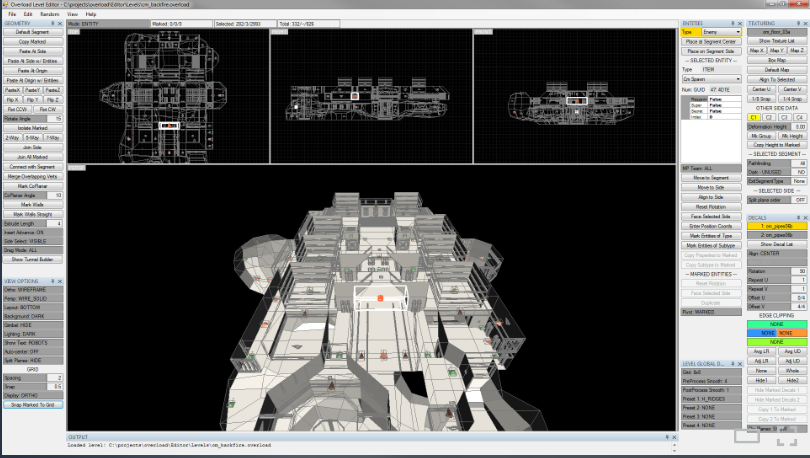 |
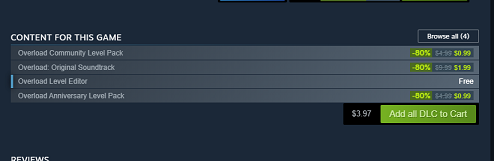
| The easiest first step for me was to install the Editor directly from Steam which is version 1.0.1.0, and then copy in the newest version from OLmod over the top. If you have purchased the game from steam you will see the Level Editor as a free DLC Asset. If you want more explanation read on otherwise skip to the next paragraph. This won't be the latest version however what it will do is install all of the directories needed to edit levels as well as eliminate some other extra steps if you just grab the newest OLMod version. There are several files that are not in newest version including some directories like the "LevelTextures" directory among others. This will create several errors when trying to run the editor. There are commands that can be run to straighten out where to point the OLmod Level Editor however this was confusing to a non tech person like myself, and it did not straighten out the textures being missing etc. The other advantage is that it takes care of the where to put it and point it for you without having to be tech savvy. |
- Open Steam
Free DLC
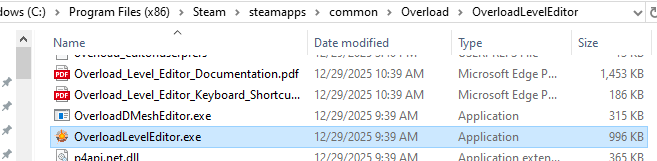
Go to your Overload content and then down the page or find Overload in the store and then look down to the "DLC" content. Mine is already in my library, so I don't have a download option. Go ahead and download this DLC content. Steam will automaticly download, extract and install the content into a sub directory within your Overload game directory. For me that path can be seen in the below screenshot. You can launch the Editor from Steam itself, however if you have already set the option in Steam to always launch the game then that can get in the way. There are two ways to launch the Editor with one being in Steam or the other by going to the file directory and launching the OverloadLevelEditor.exe
File Explorer
From within your Windows Explorer navigate to the OverloadLevelEditor.exe file and launch it from from there. It will take longer to open for its first launch. After you have launched and closed the Overload Level Editor all of the necessary folders and files will have been created as well as having the editor point to all of the correct assets and save areas. Head here to grab this version or head back out to the Overload Resource page to use the Github link to check for the latest version of the Overload Level Editor Level Editor V1.1.8.0
Again just like in the picture for Steam your file path may be something like this C:\Program Files (x86)\Steam\steamapps\common\Overload\OverloadLevelEditor Unzip the latest version and pasted it into the current editor directory. Answer yes to copy over any existing files and then you will be able to launch the Editor. I would suggest that you create a shortcut of the OverloadLevelEditor.exe file by right clicking on it. If you don't see that as an option click on more. Once you have your shortcut then put it on your your desktop or where you want it for easy launching.