Objective: To make a tunnel that bends 90 degrees to the left
Pre-requisites:
basic knowledge of D3Edit...how to build a room, extrude
function.
Author: Schplurg
Click to download the files used in this lesson
ex. a
Baffled By Bending? Behold...
grid size = 5 in the following pics
I recommend following these steps and using the exact specifications given in this tutorial when building your tunnel. Once you are familiar with the way this works, experimenting later will produce some very interesting results.
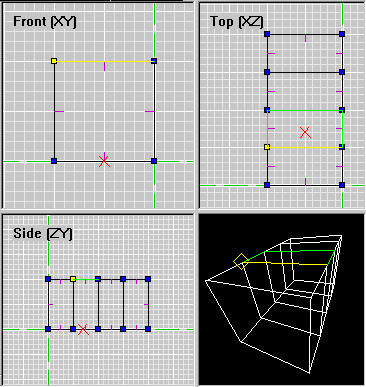
Our finished tunnel will bend 90 degrees to the left when viewed from the top, as in ex. a. Start by building a tunnel 100 units long, 50 wide, and 50 high. To do this, begin with a 50 x 50 face and extrude your tunnel along the Z axis in 4 segments, each segment being 25 units long ex. b. The segments are necessary because it is at these joints that the tunnel will bend.
Go to Vert
mode and mark all verts. We will focus our attention now on the Top
(XZ) view since this will be the best angle from which to see our
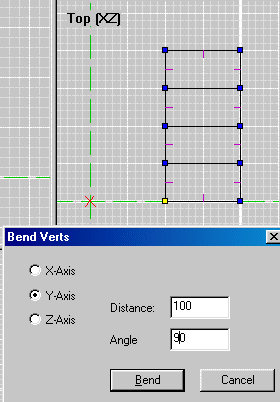
bend. Set the reference frame 50 units to the left of our tunnel and even
with the bottom, as viewed in ex c. Use Ctrl + L click to
set the reference frame (the point where the 2 green lines intersect).
This sets the center point around which our tunnel will bend.
ex. b
Bend verts window - these numbers can be very tricky. I'll describe them briefly now. At the end of this lesson I'll discuss these functions in more depth.
Axis is the axis-pole that the bend will wrap around. In ex. c, X = horizontal and Z = vertical. You are therefore viewing the tunnel along the Y axis, straight down at the tunnel. This is the pole around which our tunnel will bend - the Y axis.
Distance should be set to the length of the section to be bent. Our tunnel is 100 units long...enter 100 here. Negative numbers may also be entered here for different results.
Angle is the amount of bend you want your tunnel to make. For now use a safe-and sane 90 degrees :o)
ex. c
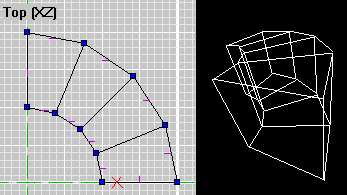
You should now be seeing something you may have never seen before - a bent tunnel that you created in D3Edit!!! Ex. d is the finished product. If it didn't work, relax, stretch out, then run through this lesson again.
ex. d
How This Works:
There are several major
keys to bending:
Reference frame is the axis for the bend, like the center of a wheel.
Distance is a big variable. Try the above tutorial but set the reference frame on the right side of the tunnel instead of the left. Enter the same values in the Bend popup window and see what happens...it bent to the right, but it's also inverted!!! Now do the same thing, but this time set the distance to negative 200 (-200)...hey, it worked!
Angle also yields different results if you change the value.
Play with all of these settings using this simple tunnel and you will have conquered a seemingly complicated aspect of D3Editing.
NOTE: some important
notes regarding
the bend function and aligning textures on stretched surfaces. It is
HIGHLY recommended you check this out!