CUSTOM OBJECTS  PART III

For the files used in this tutorial get Custob3.zip


The last feature to an object is it's ability to shoot weapons or spew from different parts of itself.
The points from which it fires are called GUN POINTS.

For now I'll use spew when I get to the script.  You can shoot weapons but not repeatedly.  So if you
want to launch a few missles.. fine.  For firing lasers, vauss, plasma, etc., you should change it to a robot.
(That tutorial is coming in a week or so).

In Dallas you refer to a specific GUN POINT choosing a "GunNum".  Every object can fire or spew from
it's center or "Zero" point by specifying  GunNum: -1 which we did in Custom Objects Part II.  If we want to
fire from a specific location we have to have GUN POINTS at those locations.


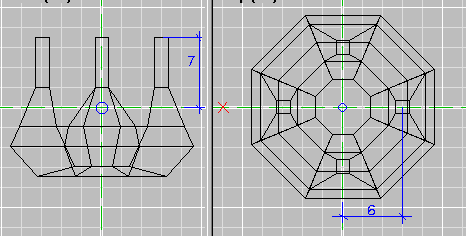
I've created a turret with four barrels.  I need to put a gun point at the end of each barrel.  We'll do this using  D3Tool. 

You'll need to know the X, Y, and Z coordinates to place them.  To make that easier center your object both verticaly and horizontally in D3Edit and figure out the cooridinates for your points.  It's important for 0,0,0 to be at the center when you do this because that's where it will be when you import it into D3Tool.

Look below.


Start up D3Tool and import your orf.

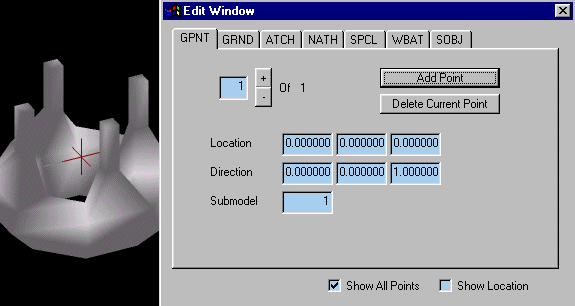
Go to Tool-Edit Window to get the dialog show to the right.  Pick 'Add Point'.

You see the red cross That's the GunPoint.  It's gets inserted at 0,0,0.   Note that the only reason you see it in this instance is because 0,0,0 isn't covered by part of the object.


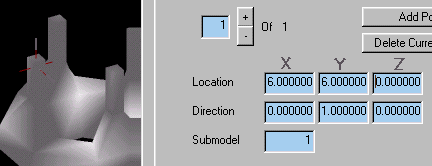
I set the the location to +6 X, +6Y, 0Z

Notice where the crosshairs moved to in the example to the right.

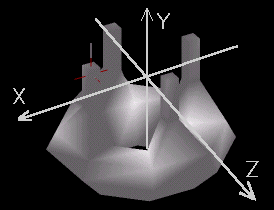
The diagram below shows us how the axis are situated based the entries to the right


 I'll set the Direction to +1Y .  The direction is the grey line come out of the red crosshairs.

Now  I'll insert the other three at:
-6X, +6Y, 0Z   (2 of 4)
0X, +6Y,  +6Z (3 of 4)
0X, +6Y, -6Z  (4 of 4)
Note!  Make sure the gun point number (? of 4) is the point you want to move.  It doesn't change when you add a point.  You have to do that.


Save the object by choosing File-Export - .OOF.
Now set a .gam file for the new object.
Use the settings I have shown to the right
Initial Rotation Velocity - Y=2000
Fixed Rotation Velocity - ON
Lock X, Y, and Z

I made a pedestal for the turret to sit on and inserted the turret so it looks mounted on the pedestal (sort of). 

The Scripting brings it to life. 

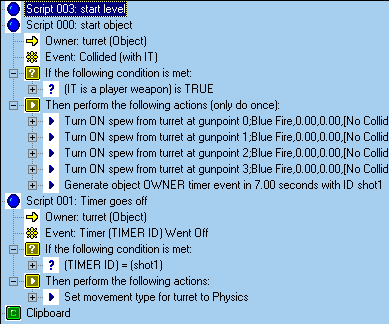
Script "start level" sets movement type for turret to NONE so it isn't moving at the beginning.

Script "start object" to start spew from the for new gunpoints when shot by a player weapon.  Also have it start a timer and set it for 7 seconds.  Set the the script to "only do once" or every time you hit it another execution of the script stasrts.

Script "Timer goes off" starts the turret turning by setting movement to 'physics'.

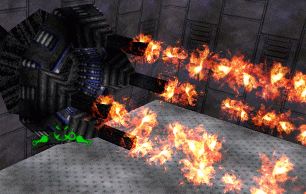
Now when you shoot the turret it starts spewing.  After 7 seconds it will start to spin.


Note! I originally wrote this tutorial having timers looped to fire a weapon repeatedly.  This was a bad technic.
If you want to have your object fire a weapon  repeatedly the best thing to do is change it from clutter to robot.
I just learned how to do this and will have a tutorial up in a week or so.

Load up turret.mn3 from the zip file and check out the results.

Be creative and even with it's limitations you can create traps, tricks, and other surprises.  I used an object to trap someone if they didn't hurry and set the room to destroy them if trapped.

Use your imagination and have a blast.

Good luck


[ MAIN]