CUSTOM OBJECTS PART
II
For the files used in this tutorial get Custob2.zip
| Now that you
see how easy it is to make an object and put it into your level let's learn
about some of the properties available to us to make things interesting.
Properties exist in the .gam file on the object page we set up in the previous
section. From that page we determine how the object behaves, if it's
destroyable, set the point value for destroying it. But first a boring
but helpful setting....SIZE.
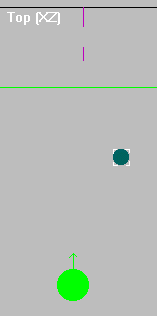
Here's a shot of our ball in D3Edit. It
looks tiny next to a player but it's really 30 units in diameter; much
larger than a player. To make it proportionate to it's actual size,
set the 'SIZE' entry to the object's radius (not diameter).
The 'After' shot is from D3Edit after I changed
the size
from 2 to 15. Since you can't see the object
in 'Texture View' (without hacking the D3.hog) this is the best way to
help place the object. If you really have to be specific on the placement
you'll have to know it's exact size and calculate were to insert it |
Before:
 |
After:
 |
Below is the portion of the .gam file page that we're going to deal
with (I cut and pasted it to columns so it wouldn't be 2 pages deep).
I've pointed out the specifications we're going to set. As you
can see there are alot of options. You can get a list of what most
of these
options control from three sources: the Outrage/D3edit Site, gamtool's
readme file or the flags.txt file that comes with 'D3 CONTROL PANEL'.
I've heard alot of good things about D3Control Panel but haven't had
a chance to try it.
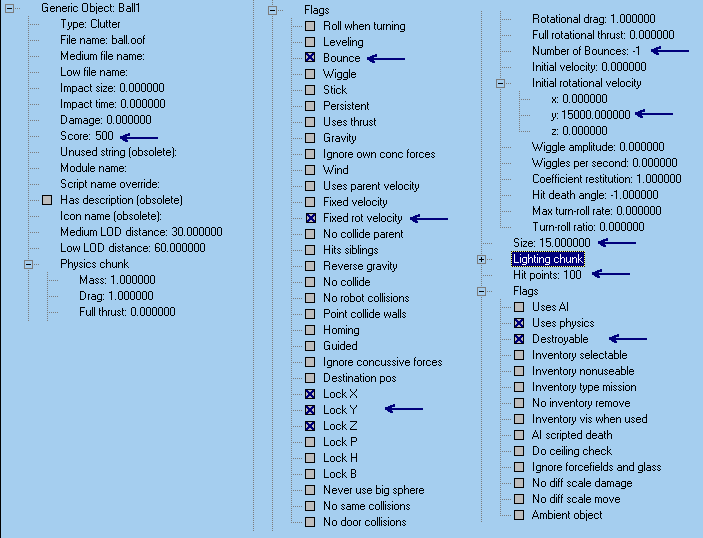
I'm just going to address the settings I've marked or this would turn
into a ten page essay.
1) Score: Pretty obvious.... set it to 500. This will be
the score for destroying it. Remember to set a value, DBL-Click on
it or
mark it the go to EDIT-MODIFY SPACE.
2) Bounce: Get to it by expanding the PHYSICS CHUNK branch
then the FLAGS branch inside PHYSICS CHUNK.
If you tried our object at the end of our last tutorial you may have
notices that when it hit a wall it just kind of slid along it.
Turn on 'Bounce' by checking (or X'ing) the box and it will bounce
of walls and other objects.
3) Fixed Rot Velocity: Meaning rotation velocity. We are
going to have our object spinning. By checking this box it's speed
won't be affected by hitting it. If we don't set this, impact
from a weapon, object or colliding with a wall can speed up, slow down,
or stop the rotation. Check this on.
4) Lock X, Lock Y. Locks the object from moving on that plane
with hit. To keep it from moving at all, Lock X,Y,Z.
5) Number of Bounces: VERY DANGEROUS! Make sure it's
on -1. I experimented with this. When I set it on 3 bounces
it would bounce of a wall up to 3 times. On the 4th it just past
through the wall and out of the room instead of bouncing of it.
6) Initial Rotation Velocity: Choose the axis or axises you want
it to rotate upon. I'm going to set y = 1500.00.
You need to use a high number.
7) Size: Discussed earlier.
8) Hit Points: Amount of hit points required to destroy it.
9) Uses Physics: Uses the specifications of the Physics Chunk
(rotation, velocity, etc.)
10) Destroyable: Must be check if you want it to be destroyed.
Based on the settings above we have a DESTROYABLE
object that SCOREs 500
after receiving 100 HIT POINTS. It will
spin on it's
Y axis at a speed 1500
and USES PHYSICS to do so. If
spinning, nothing can change the speed because it's a FIXED
ROTATION VELOCITY.
Also it cannot be knocked around because we LOCKED
X, Y, and Z.
| Now for some quick scripting.
Be default an object with an initial rotation velocity will spin unless
told not to.
Let's start with the object NOT rotating.
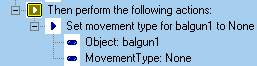
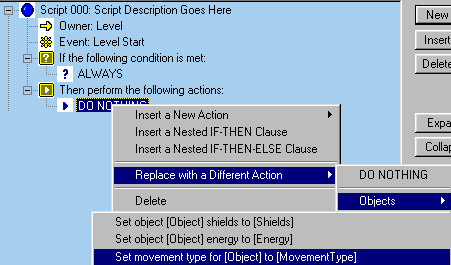
Get the "Set movement type .." action as shown to the right.
Set it to none as shown below. The name of my custom objects balgun1.
|
 |
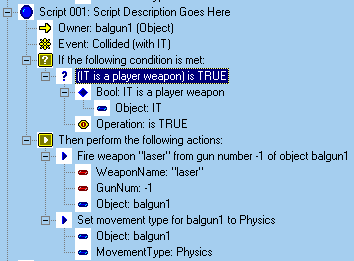
When we enter the level it won't
be moving. We'll write a script that starts it turning when hit by
a Player Weapon. We''ll also have it fire a laser when hit.
OWNER is your custom object.
For the condition go to Insert New Condition-Binary Statement-
Object- (IT is a player weapon) is True.
All objects can shot or spew from their 'zero' point. You do this
by specifying GunNum: -1. In the next tutorial I'll show you how
to add gunpoints. At WeaponName spell out the weapon. You don't
get a list to choose from.
Add another action: 'Set movement type..." (same as at Level Start)
and set Movement Type to "Physic" |
 |
Save the script, compile it, create a mission, add all the necessary
files and check it out. Or just get the level I made from the zipfile
mentioned at the beginning. Once the object is rotating keep
firing at it and see how the it's laser behaves.
You can also script clutter objects for basic movements along an axis.
With some imagination you can add some life, tricks and traps to your
level.
I'll try to get the GunPoint tutorial up in the next week.
Good luck
[ MAIN]