CUSTOM OBJECTS
With scripting you can make a lot happen in your level:
Have
OBJECTS move to reveal a secret entrance
ar stash of weapons,
have rocks and other OBJECTS fall and
block a passage, have a bladed OBJECT like
a fan turning at an entrance to make
it difficult or dangerous to enter. But to make anything do something
with scripting it has to be an OBJECT.
Robots, powerups, clutter, and buildings
are the four types of objects in Descent 3.
For an object to exist in D3 it requires two
main things; a polygon model of the object which is saved in an .oof file
(Outrage Object File I think)
and a description of all it properties in
a .gam file.
The good news is all the tools you need are free.
Use D3Edit to build your polygon model (an .orf). Use D3TOOL,
a free utility, to convert your .orf
to a .oof file. Use gamTool,
another free utility to create a .gam file. for your object. Big
thanks to the developers of these utilities. Also, you can download
custobj1.zip
which contains the files created for this tutorial and a .mn3 with the
object in it.
First create a folder to store your files in called
Custobj1 (or whatever you like).
| We'll start
out simple. I've made a ball in D3edit. you find it in custob1.zip.
It's a room named ball.orf
Notice that all the normals are pointing out.
Also notice that I made sure the center of the
object is at 0,0,0. You won't be able to see the object in D3Edit
as anything other than a the green ball that represents an object so it's
important to remember it's size and where it's center is.
Test it just like a room making sure it's sealed,
there are no duplicate verts, etc.,
Save it and close the room. |
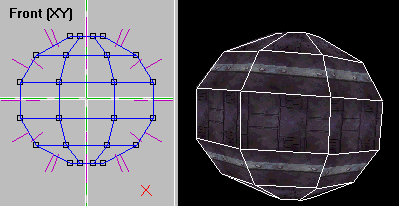 |
Now start up D3Tool and
import the .orf |
Export it as an .oof.
Close down D3Tool. |
 |
 |
Now we need to create a .gam file. A .gam file is where D3 looks to
get the specifications on objects, textures, doors, sounds, etc.
A .gam file has a PAGE for each object that tells D3 how to treat
it: whether it's a ROBOT or CLUTTER, how many hits to destroy it,
is it invulnerable, how it can move.
| Start up gamTool. When it opens
it will start you off with an empty .gam file called Table1. Save
it
as Custobj1 into your working folder. Start a new PAGE for our object
by going to Edit-New-Generic Object |
|
Pick the + sign to open the branch.
Dbl-click on "Generic Object" to change the object's name from 'New_Object'
to 'Ball1'. That's the name that will show up in D3Edit's Object
pallet. Leave TYPE as 'Clutter'. 'File Name' is where you tell
it what polygon model to use. Make it 'ball.oof' as shown below.
Save and close down gamTool. |
 |
|
 |
I added a new page for loading your custom .gam into D3Edit.
Go to See Custom Objects In D3Edit.
It will show you how to make your object available for D3Edit to use.
You need it to completee this tutorial.
Come back and pick up here when you finish it.
Build a room to use as a level make it around 200x200x100.
Save it and use it to start a new level. Save the new level as custobj1.
| Go to your Object tool bar
and bring up the Object Pallet by clicking on Available Objects.
Check Clutter to list all available clutter objects.
Scroll all the way to bottom. That's where additional objects
are found.
Thanks to KILLSU2 for the info on making it vivsible in D3Edit. |
 |
Drag the object into the Object Tool Bar, choose it, and insert
it into your level. Save your level.
| Now for the last step; bringing it
all together in the mission file (.mn3).
Start up the MN3 Packer, insert your level and give it name.
For Descent 3 to use our new object you need to add the .oof file and
the .gam file. Do this by using the 'Add Files' button. The
results should be as shown to the right.
Save the mission into your Descent3\Missions folder as Custobj1.mn3.
Important Note!
The mission file (.mn3) MUST have the same
name as the .gam file.
Close everything down, start up D3 and check out your custom object.
Once in the game shoot the object around the room using lasers and missiles.
It moves but it hardly bounces off the walls. There 'Flags in the
.gam file that control this and many other aspects of the object's behavior.
I cover that in my next tutorial.
|
 |
This was a basic run through of what it takes to get a custom object
into your Descent 3 level.
We just scratched the surface. There is A LOT more to know.
In the next tutorial we'll go into the different settings in the .gam
file and how the control an object's behavior.
After that we'll write script to get our object to do things.
It's somewhat limited but with some creativity and ingenuity custom
objects can add a lot to your level.
[ MAIN]