| Download the D3Edit files
used in this lesson. |
|
|
Lesson 4 Texturing For this lesson you will need the completed room from Lesson 3. Open D3Edit
and open up your room (room1.orf) |
|
ex. a (floor
already changed)
Enter face mode - we will remain there for this entire lesson. We managed to rid our room of that nasty default texture pattern and replace it with something else. Let's spruce up our room a little more. We'll change our floor texture and make it look like ex. a. First we need to make that face current. Use the F key or click in any of the four panes until the face is green ex. a. Click the Tx button to open up the texture toolbar. It should resemble ex. b. Notice now that the texture name is no longer listed under the custom tab, as it was in Lesson 3. The custom area is a temporary storage for textures that is cleared every time you open D3Edit. If our room was part of a level, the textures would permanently reside under the level tab, along with every other texture in the level. To find the floor texture, click Available
Textures..., then click Large and finally, Mine Textures. It
may take a few moments for all the textures to "page in". Once the
textures are visible, find the one called Lego Floor. Since I'm such a
cool guy, I'll make your search through the 900+ textures easier by showing you
approximately where it's at ex. c. |
ex. b
|
ex. c (mangled view of
dragging a texture, and where it's located!)

|
Make sure the custom tab is open and drag the texture to it ex c. Highlight Lego Floor in the custom view, and click To Current to apply the texture to the current face. Your room should now look like ex. a. Now scroll to the top of the Texture Palette window and find the LWceil.tga1 texture and apply it to the ceiling using the same methods as above, making sure the ceiling is the current face first. You can minimize the texture palette to get it out of the way. Don't close it or you'll have to wait for it to reload again. I'll wait for you..... |
|
|
Back so soon? Does your room look like ex. d?
Good! Now we're gonna brighten up the place a bit - a little "mood
lighting" if you will. :o(
|
|
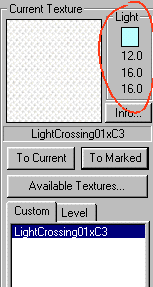
Lighting - the short version We will discuss lighting more in-depth in later tutorials, for now I'll just go over the basics. In order to illuminate your level, D3Edit has a special lighting function that determines where lights are placed in the level, and calculates how these lights will affect the way the level is lit. If you ran this lighting function and there were no light sources in the mine, it would be completely dark when you ran the game. Strategically placing light sources throughout the rooms is a very important aspect of level designing - which areas you want to be dark and shadowy, which areas you want lit up bright. The only way to know how light will affect your level is through trial and error. Right now you're in the trial stage :) Clear all the checkboxes in the texture palette except for Light textures (you may have minimized the texture palette window). This is a list of textures that have different degrees of luminosity. They are placed on faces the same way any other texture is placed. Select and drag the light texture named LightCrossing01xc3 into the custom box. It's about 2 pages down on the list when it's set to "large". The texture is shown in ex. e. |
|
|
Look at the area circled in red in ex. e. The little box beneath the word 'light' indicates the color of the light that will radiate from that face. The 3 sets of numbers below it indicates the RGB color values and the intensity of the light - how bright it is. These numbers can help you decide what light faces to use and the amount of light faces you will need to illuminate the level - the bigger the room is, the more light power it will take to light it. The light texture we've chosen is moderately bright...I think it might look good applied to the thin row of faces that encompass the room, just below the ceiling. Now you know why we made the second extrusion! If we applied this light texture to the bigger walls, the room would be VERY bright. Only one texture can be placed on a single face. I knew in advance how I wanted to light the room - the thin row of faces should give us just enough surface area worth of light texturing to illuminate the room. Level brightness is determined by not only the textures used, but also by the amount of surface area that is textured with light textures. The bigger the face, the bigger the total lit area. Texturing multiple faces
|
ex. e
|
ex. f (colors altered in picture
for better visibility)
ex. g |
Faces and verts can be marked in their respective modes by dragging a box around them. In ex. f notice that the row of small faces we want to mark is entirely within the "drag rectangle" formed by points a and b. Left-click and hold on point a and drag a box down to point b. When you let go of the mouse button, the faces that were completely enclosed in the rectangle will be outlined in blue (marked) ex. g. The other 2D panes show different views of this...but wait a minute! Our ceiling is marked too! We don't want to re-texture our ceiling! |
|
No problem! In either the Top view pane, or in the
3D pane click around until the ceiling face is current. Go to the Mark
drop down menu and select Mark/Unmark. This will mark or unmark the current
face only. You can also use the space bar, but be sure that one of the
2D panes are selected, otherwise this method will have no effect! The menu
method is foolproof, especially since we can't tell whether or not the ceiling
is still marked by looking at it because all the faces and edges around it are
marked still. We'll just have to trust that ol' D3Edit took care of the
unmarking for us.
Incidentally, have you saved your room recently? Do it now...there is no undo function if you goof up. Make sure the light texture is current (ex. e) and click the To Marked button. Your 3D textured view should look like ex. h. ex. h Excellent! Your room doesn't look any brighter because D3Edit does not display lighting effects (unlike DMB2). You will have to view this from within the game AFTER you run it through the lighting function. Save again. This lesson may seem a little short. That's because we have some work ahead of us for the next one - including turning this single room into a level (.d3l), running the mine radiosity function (lighting the level), converting the level, into a .mn3 file (playable D3 level), and yes...you will take the first test flight in your new level!!! But don't worry, this is only the beginning! The full potential of D3Edit has barely been scratched! The lessons will continue until you have a full featured, multi-roomed, multiplayer, Descent 3 level!!! Class dismissed! |
|


